
Few things are more frustrating than settling in for a movie night only to be interrupted by an error message. One of the more common issues users encounter while streaming on Netflix is error code M7361. This error typically appears when using a web browser—especially Google Chrome—and can prevent videos from playing altogether.
The good news is that the error code M7361 is usually easy to fix. In this guide, we’ll explain what Netflix error code M7361 is, why it occurs, and walk you through step-by-step solutions to restore smooth streaming quickly.
1. What Is Netflix Error Code M7361?
Netflix error code M7361 (or error code m7361-1253) is a playback issue that occurs primarily when trying to stream content through a web browser. It is most commonly associated with Google Chrome, but it can also appear in other Chromium-based browsers.
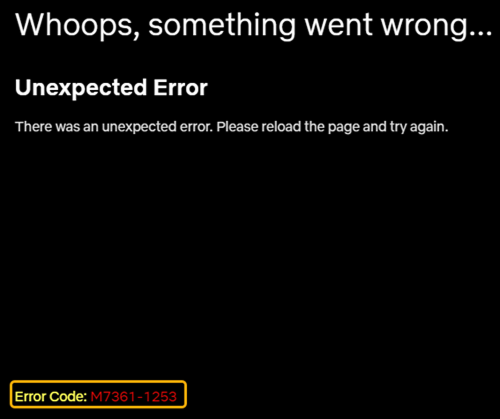
This error usually indicates that something is interfering with Netflix’s ability to play video content. The most common causes include:
- Outdated browser version
- Disabled or outdated DRM components (like Widevine)
- Conflicting browser extensions
- Corrupted cache or cookies
- Hardware acceleration issues
In simple terms, Netflix cannot verify or properly load the video due to a problem in your browser environment.
2. How to Fix Netflix Error Code M7361?
Below are the most effective methods to resolve this issue. You don’t necessarily need to try all of them—start from the top and work your way down until the problem is fixed.
2.1 Update Your Browser
An outdated browser is one of the leading causes of error M7361.
手順:
Open your Chrome browser and click the three-dot menu in the top-right corner > Go to Help > About Google Chrome > Allow it to check for updates and install any available version > Restart the browser.
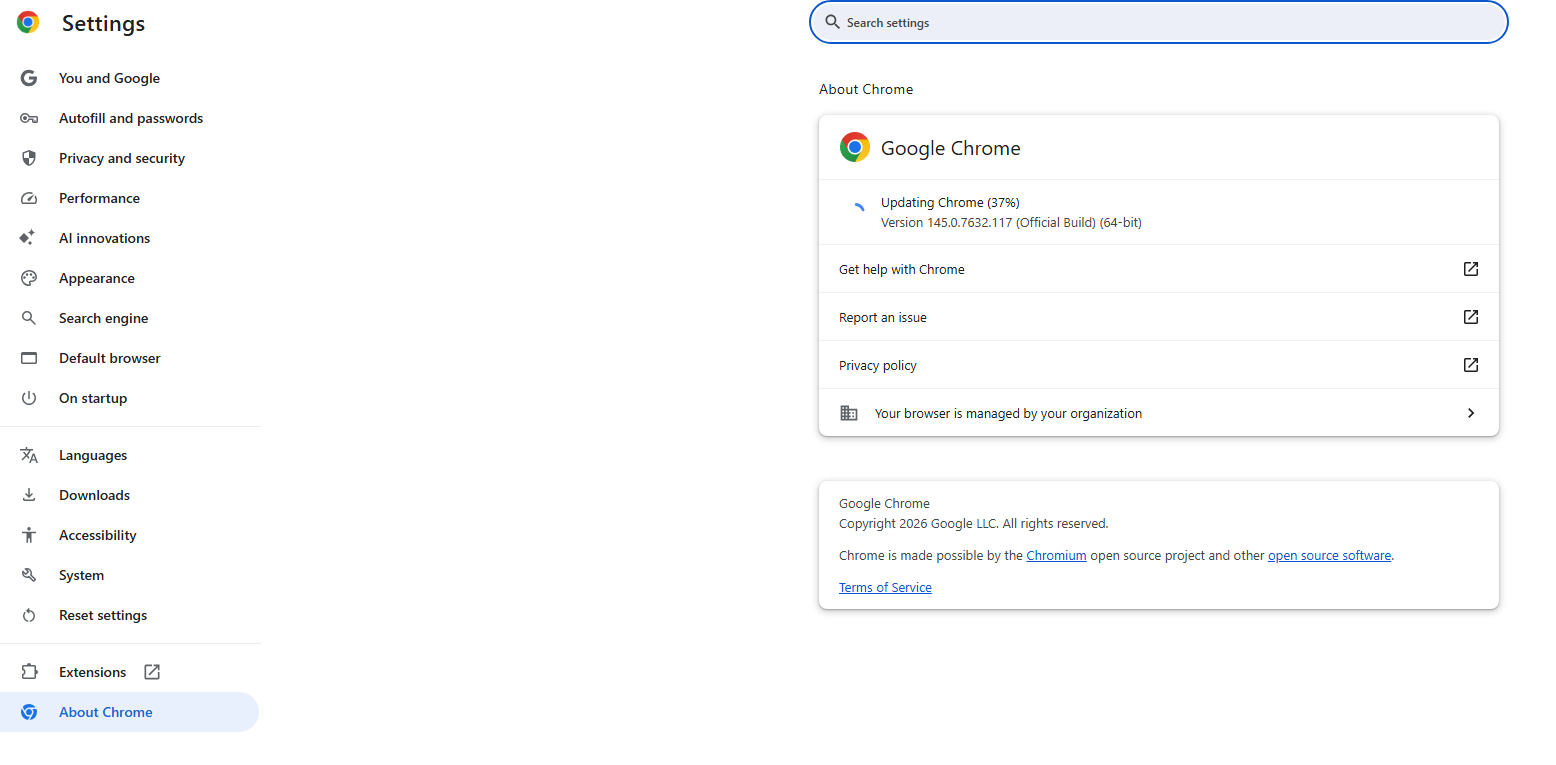
Keeping your browser updated ensures compatibility with Netflix’s latest playback requirements.
2.2 Enable Widevine Content Decryption Module
Netflix relies on a DRM component called Widevine to protect and stream content.
Steps to check Widevine in Chrome:
- タイプ
chrome://componentsin the address bar - Locate Widevine Content Decryption Module
- クリック Check for update and then restart your browser
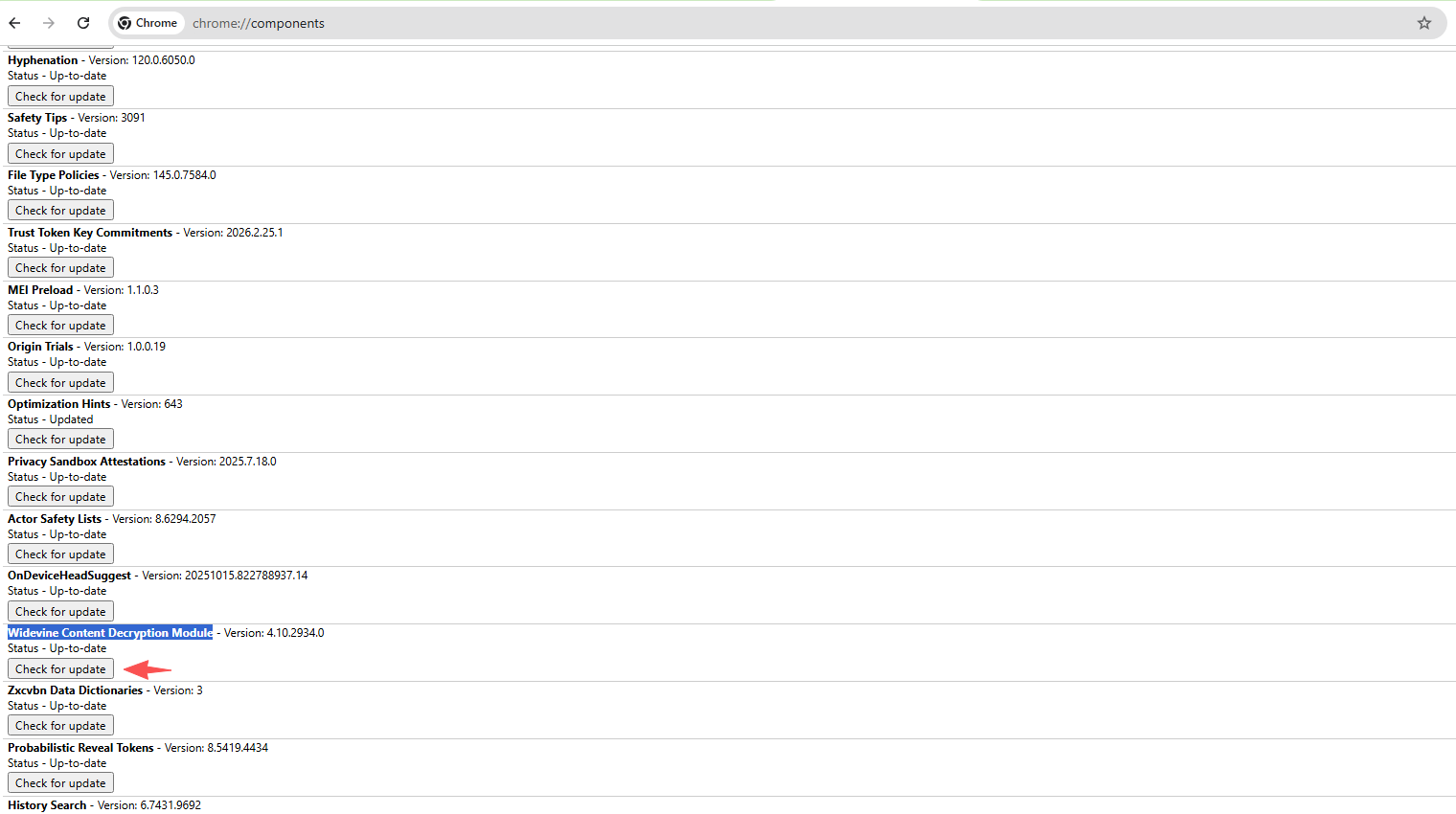
If Widevine is missing or outdated, Netflix videos will not play.
2.3 Clear Cache and Cookies
Corrupted cache or cookies can interfere with streaming.
手順:
Open browser settings, and go to プライバシーとセキュリティ > クリック 閲覧データを消去する > Select: クッキーおよびその他のサイトデータ そして キャッシュされた画像とファイル > クリック クリアデータ
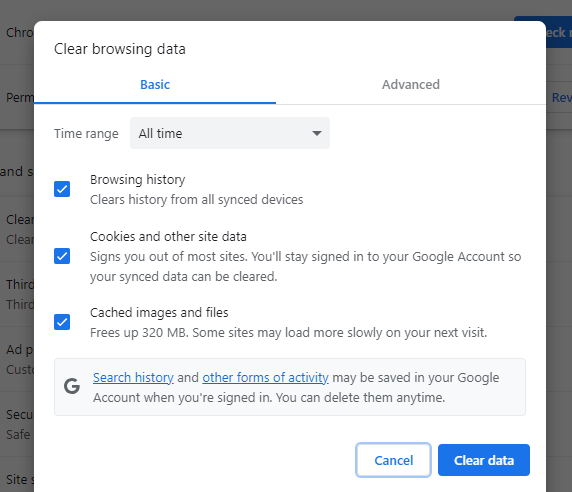
After clearing, log back into Netflix and try again.
2.4 Disable Browser Extensions
Some extensions—especially ad blockers, VPNs, or privacy tools—can block Netflix playback.
手順:
へ移動
chrome://extensions/
> Disable all extensions > Restart your browser and try playing Netflix
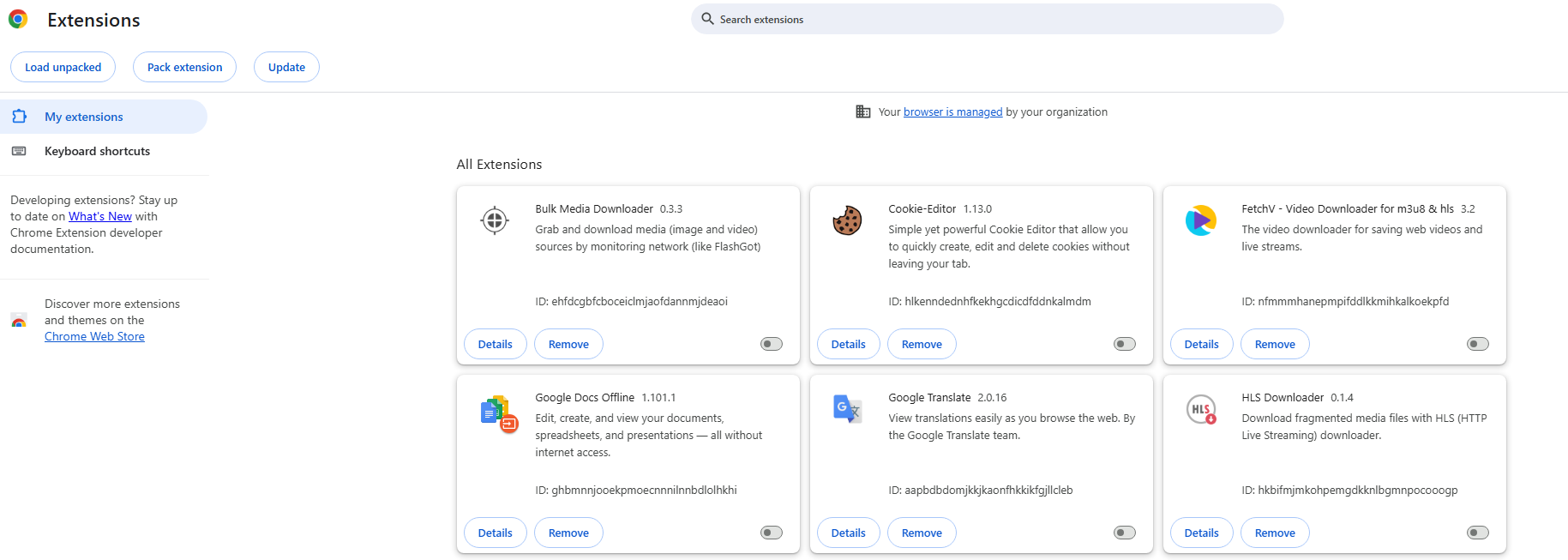
If playback resumes, activate extensions one by one to isolate the problematic one.
2.5 Turn Off Hardware Acceleration
In some cases, hardware acceleration can disrupt video playback.
手順:
Go to browser settings > Navigate to システム and toggle off グラフィックアクセラレーションが利用可能な場合は使用する > Restart the browser
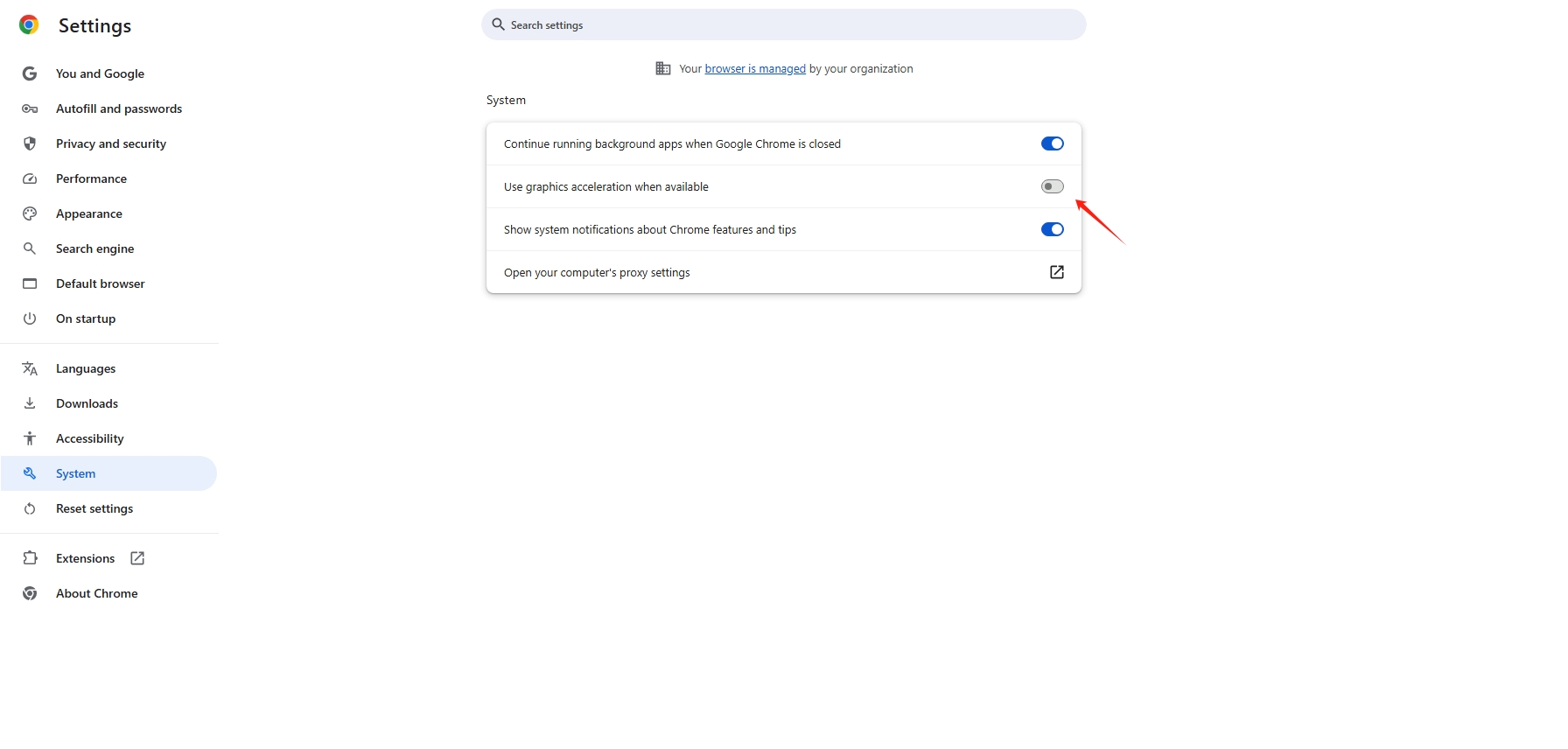
This can resolve playback glitches in many cases.
2.6 シークレットモードを試す
Incognito mode disables all extensions and provides a fresh browsing environment.
手順:
- 打つ Ctrl + Shift + N (Windows)または Cmd + Shift + N (Mac) to open a new Incognito window.
- Open Netflix and try streaming
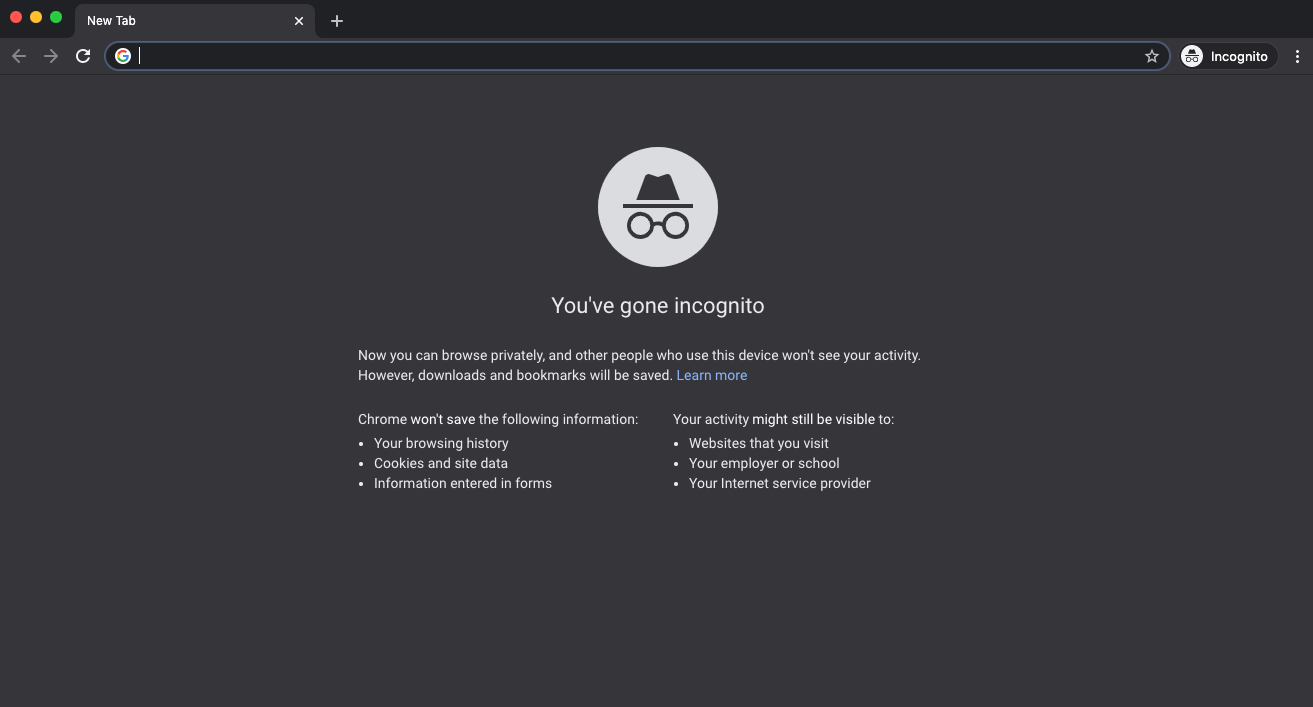
If it works in incognito mode, the issue is likely related to extensions or cached data.
2.7 Check Your Internet Connection
While less common, unstable internet can trigger playback errors.
ヒント:
- Restart your router
- Switch to a wired connection if possible
- Avoid using VPNs or proxies
Netflix may block certain IP addresses, especially if they appear suspicious.
2.8 Reinstall Your Browser
If none of the above solutions work, reinstalling your browser can fix deeper issues.
手順:
- Uninstall your browser
- Download the latest version from the official website, install and launch it
- Log back into Netflix
This ensures a completely clean setup.
3. Bonus: Record Netflix with Swyshare Recordit
Sometimes, even after fixing playback issues, you may want a more flexible way to watch content – especially offline or without interruptions. That’s where Swyshare Recordit 入って来ます。
Swyshare Recordit is a lightweight and user-friendly screen recorder that allows you to capture high-quality video directly from your screen, including Netflix playback.
使用理由 Recordit ?
- Smooth Performance – Record Netflix without laggy or black screen
- HD recording – Capture Netflix videos in high quality
- Custom screen area – Record full screen or selected region
- System audio capture – Save original sound clearly
- クイックエクスポート – Save recordings in popular MP4 or other formats
- One-click control – Easy start/stop recording
How to Record Netflix with Recordit :
- Download, set up and launch Swyshare Recordit Mac or Windows version.
- Open Netflix in your browser, then use Recordit to select the recording area and turn system audio
- Play your Netflix video and start recording.
- Stop recording when finished and find the recorded Netflix videos in the “Files” tab.

4. 結論
Netflix error code M7361-1253 is a common browser-related playback issue, usually caused by outdated components, DRM problems, or extension conflicts. Fortunately, it can be resolved quickly by updating your browser, enabling Widevine, clearing cache, or disabling problematic extensions.
If you’re looking for a more flexible viewing experience beyond streaming, Swyshare Recordit is a great solution. It allows you to record Netflix content smoothly and enjoy it anytime without worrying about errors, buffering, or internet stability.
For a simple, efficient, and beginner-friendly tool, Recordit is highly recommended as a reliable companion to your Netflix experience.